PNG vs JPG vs WEBP: Which Image Format Should You Use?
By kizura · Updated July 2026
The three formats at a glance
Almost every image on the web is a JPG, PNG, or WEBP, and each exists for a different reason. JPG is the classic photo format — small files, great for photographs, but lossy and without transparency. PNG is lossless and supports transparency, making it ideal for logos, icons, and graphics with sharp edges. WEBP is the modern all-rounder, offering smaller files than both JPG and PNG at similar quality, with support for transparency and even animation. Choosing the right one affects how your image looks and how fast your page loads.
When to use JPG
Use JPG for photographs and any richly colored image where small file size matters and you do not need transparency. Its lossy compression is very efficient for photos with smooth gradients and lots of color. The trade-off is that repeatedly saving a JPG degrades it, and hard edges or text can show compression artifacts. The biggest advantage of JPG is universal compatibility — every device and program opens it without question.
When to use PNG
Use PNG when you need a transparent background (logos, icons, stickers) or a lossless image where every pixel must be preserved, such as screenshots with text, line art, or graphics with sharp edges. PNG files are larger than JPG for photographs, so it is not the right choice for full-color photos you want to keep small. But for anything with crisp edges or transparency, PNG keeps it clean.
When to use WEBP
Use WEBP for the web whenever you can. It typically produces files 25 to 35 percent smaller than JPG at the same visual quality, and smaller than PNG for graphics, while supporting both transparency and animation. Every modern browser supports it. The only reason not to use WEBP is compatibility with very old software or platforms that do not accept it. For websites, faster loading from smaller WEBP files can even help search ranking.
Converting between formats
You will often need to convert: a PNG photo to WEBP to shrink it, a WEBP to JPG for an app that does not accept WEBP, or a JPG to PNG when you need to edit with transparency. Converting to a lossless format (PNG, lossless WEBP) preserves every pixel; converting to a lossy one (JPG, lossy WEBP) trades a little detail for a much smaller file. A free in-browser converter handles all of these instantly without uploading your images. After converting a photo for the web, WEBP at high quality is almost always the smallest sharp result.
Quick answers
Which image format is best? WEBP is usually the best balance of quality and small size for the web. Use JPG for photos when maximum compatibility matters, and PNG when you need transparency or a lossless image.
Is WEBP better than JPG? For most web use, yes — WEBP files are smaller than JPG at the same quality. JPG still wins for compatibility with older software.
Does converting between formats lose quality? Converting to PNG or lossless WEBP keeps every pixel. Converting to JPG or lossy WEBP discards some detail to save space, though usually not visibly at high quality.
Related: All guides · AI Upscaler · Enlarge image · Compress image
How each format actually works (in one paragraph each)
JPEG splits the image into 8×8-pixel blocks, converts each to frequency data, and throws away the high-frequency detail your eye is worst at seeing — which is why heavy JPG compression produces blocky “mosquito” artifacts around sharp edges, and why it is brilliant for smooth photographic gradients but wrong for text. PNG is lossless: it predicts each pixel from its neighbours and compresses the prediction errors, so large flat areas (screenshots, charts, logos) collapse to almost nothing, while noisy photographs barely compress at all — every pixel is a surprise the encoder must record. WebP borrows techniques from video encoding (spatial prediction from neighbouring blocks) and offers both a lossy mode that beats JPG and a lossless mode that beats PNG, typically by 15–30% each. GIF is a 256-colour relic kept alive purely by animation; for a still image there is no reason to choose it in 2026.
The same rules, in numbers
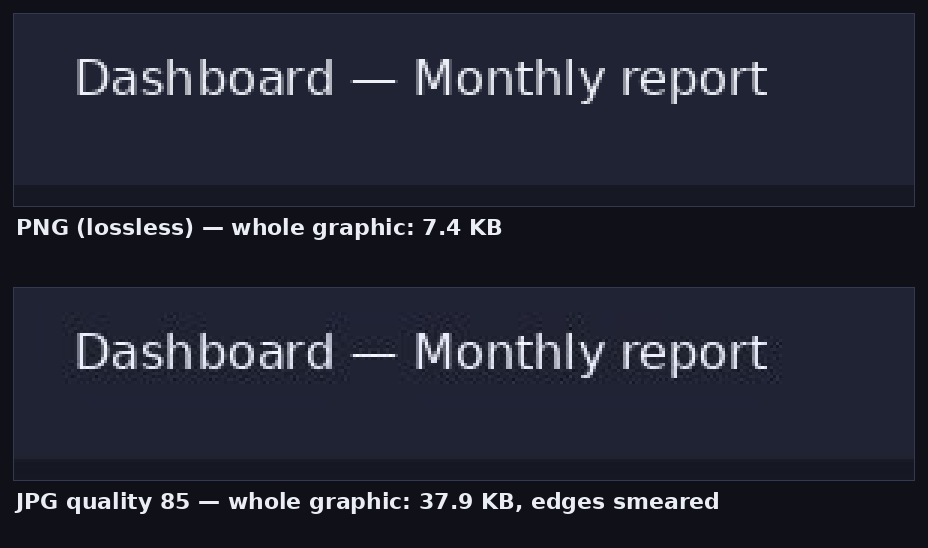
We exported two test images — a detailed 600×466 photo and a 1,200×750 flat UI graphic — in each format. The photo: 650.8 KB as PNG versus 124.7 KB as JPG q85 and ~106 KB as WebP q80. The graphic: 7.4 KB as PNG versus 37.9 KB as JPG q85 and just 1.9 KB as lossless WebP. Photographic content wants lossy formats; synthetic content wants lossless. Memorise that sentence and you can skip every format chart on the internet.
The formats you will meet but rarely choose
| Format | What it is | What to do with it |
|---|---|---|
| HEIC/HEIF | Apple’s camera default; ~half the size of JPG | Convert to JPG for sharing outside the Apple world |
| AVIF | Newest web format, smallest files of all | Great served by websites; still patchy in editing tools |
| TIFF | Uncompressed/lossless print & scan master | Keep as archive; export JPG/PNG copies for use |
| SVG | Vector — shapes and text as math, not pixels | Ideal for logos/icons; cannot hold a photograph |
| BMP | Raw uncompressed pixels from another era | Convert to PNG immediately; identical pixels, far smaller |
A closing rule of thumb for choosing exports: ask what the image is (photo vs graphic), whether it needs transparency (PNG/WebP only — JPG will flatten it), and whether it will be edited again (stay lossless until the final export). The converter handles the mechanics in your browser, and the conversion guide walks through the direction-by-direction decisions with the full measurements. For spec-level details beyond what any tool guide needs, MDN’s image file type reference is the authoritative starting point.