How to Fix a Pixelated Image and Make It Smooth Again
By kizura · Updated July 2026
What pixelation actually is
A pixelated image shows visible blocky squares instead of smooth detail. Those squares are the individual pixels becoming large enough to see, which happens when an image has too few pixels for the size it is being shown at. Common causes are enlarging a small image by stretching it, saving an image at very low resolution, or heavy compression that merges detail into blocks. Once an image is pixelated, the original detail is reduced, but AI can rebuild a convincing version of it. For a big jump, try a 4× upscale.
Why ordinary editing cannot fix it
Blurring a pixelated photo in a basic editor just trades sharp blocks for a soft smear, neither of which looks good. Sharpening only makes the blocks more obvious. The problem is that the real detail is missing, and traditional tools can only rearrange the pixels that already exist. To genuinely fix pixelation, you need something that can add believable new detail where it was lost, which is exactly what AI super-resolution does.
How AI repairs pixelated images
An AI upscaler trained on millions of images recognizes what smooth edges, textures, and shapes should look like, and reconstructs them in place of the blocky pixels. As it enlarges the image, it fills in plausible detail, smoothing jagged edges and restoring a natural appearance. The result looks like a higher-quality photo rather than a stretched, blocky one. This works especially well on faces, text, and clear shapes.
Step-by-step to depixelate
Upload the pixelated image to the upscaler. Choose 2x or 4x depending on how small or blocky it is; more pixelated images benefit from 4x. The AI rebuilds detail as it enlarges. Use the before-and-after slider to confirm the blocks are gone and edges look smooth. Download the repaired image. The whole process is free — your image is processed securely and deleted right after your result is ready.
Realistic expectations
AI does a remarkable job on most low-resolution and lightly compressed images, often making them look dramatically better. However, it cannot invent detail that was completely destroyed; an extremely tiny or severely damaged image has limits to how much can be recovered. For the vast majority of pixelated photos, screenshots, and small images, though, the improvement is significant and well worth the few seconds it takes.
Questions people ask
Can you fix a pixelated image? AI upscaling can significantly reduce pixelation by reconstructing smooth detail and edges. It works best on images that are simply low-resolution or lightly compressed.
Why do images get pixelated? Pixelation happens when an image has too few pixels for its display size, or when it was enlarged by stretching, or heavily compressed. The blocky squares are individual pixels becoming visible.
Is it free to fix? Yes. ImgScale repairs and upscales images for free with no account.
Related: All guides · AI Upscaler · Enlarge image · Compress image
Where pixelation comes from (and why it matters for the fix)
Pixelation is not one defect but three look-alikes. Stretched pixels: a small image displayed or saved larger than its grid — each source pixel becomes a visible square. JPG block artifacts: the 8×8 blocks of heavy compression, which look like pixelation but sit on a full-resolution grid. Deliberate pixel art: squares that are the artwork itself. The first is fixed by adding pixels, the second by artifact-aware reconstruction, and the third should not be “fixed” at all — smoothing pixel art destroys it (enlarge it losslessly with nearest-neighbour in PixelLab instead).
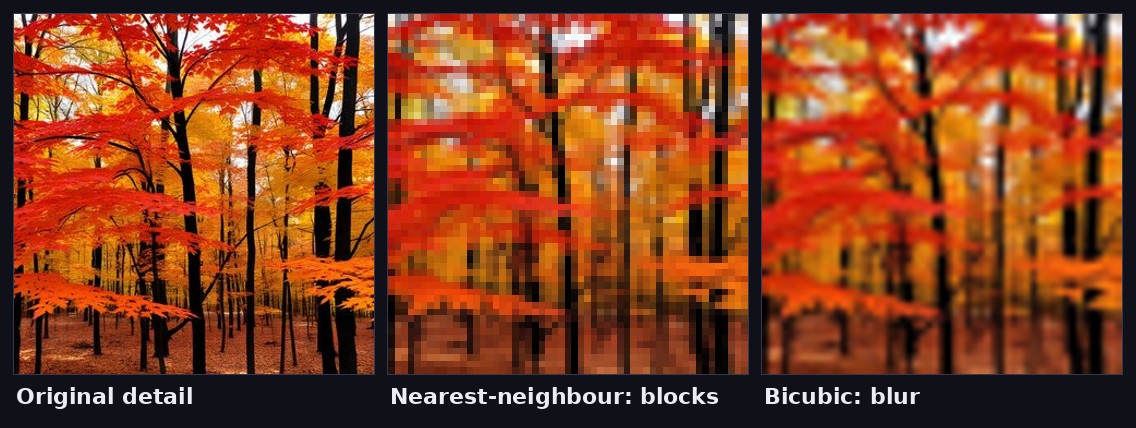
The de-pixelation workflow
- 1. Find the least-damaged copy. Every save and screenshot since the original added damage; even a paused video frame may beat a screenshot-of-a-screenshot.
- 2. Do not pre-smooth or blur. Blurring throws away the very edge information the AI uses to infer structure — feed it the raw blocks.
- 3. Upscale 2× first, inspect, then 4× if needed. On badly blocked images, 2× often reads more natural; 4× can over-invent on very low-quality input.
- 4. Export PNG. Re-saving the repaired image as JPG immediately re-introduces the block grid you just removed.
What stays un-fixable
Reconstruction has hard edges worth knowing before you judge a result. Tiny text (below roughly 10 px tall in the source) usually returns as plausible-but-wrong letterforms — the model knows what text looks like, not what yours said, so never rely on upscaled text for information. Faces below ~30 px become “a believable face” rather than a guaranteed likeness; treat identity-critical enlargements with skepticism. Regular fine patterns (fabric weaves, distant fences) can alias into invented geometry. For everything else — foliage, skin, hair, product surfaces, architecture — modern super-resolution routinely turns a blocky mess back into a usable photo, and the explainer shows exactly why those categories differ.